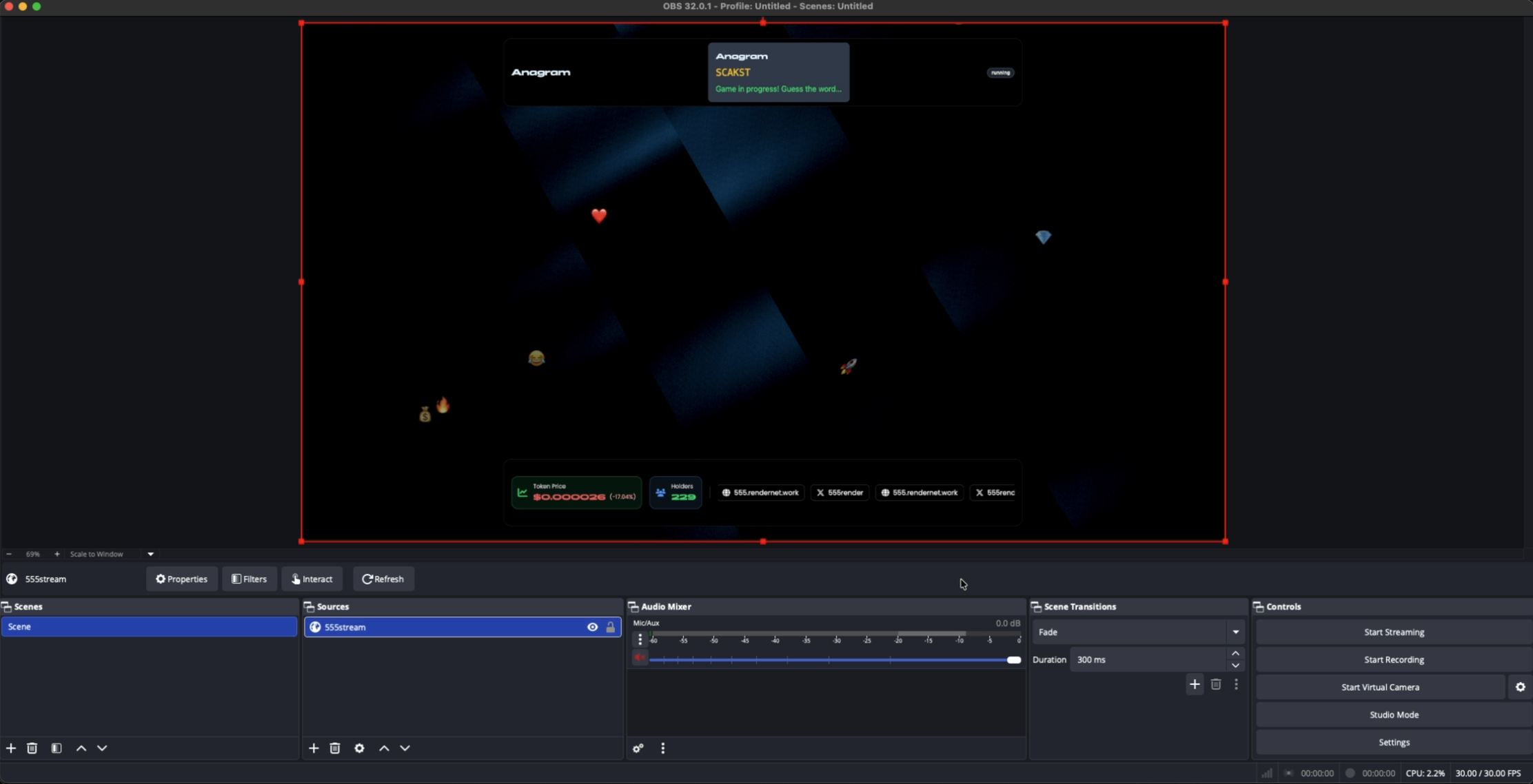
Follow these steps to add the 555 overlay to OBS Studio.
1
Navigate to CTRL
Go directly to CTRL Panel: https://rndrntwrk.comAccess requires 5,000,000 $555. If you don’t meet the threshold, request whitelist access via Discord.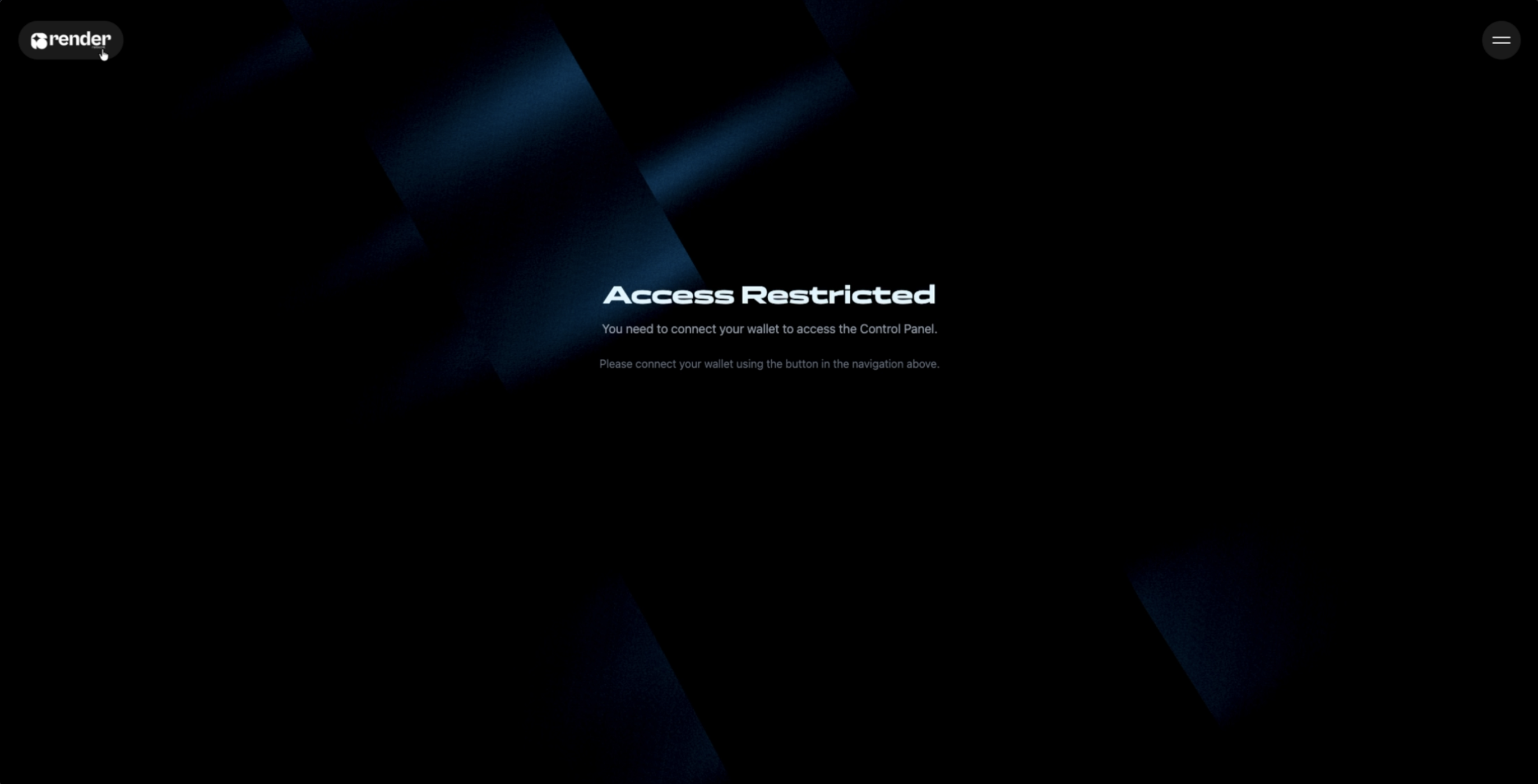
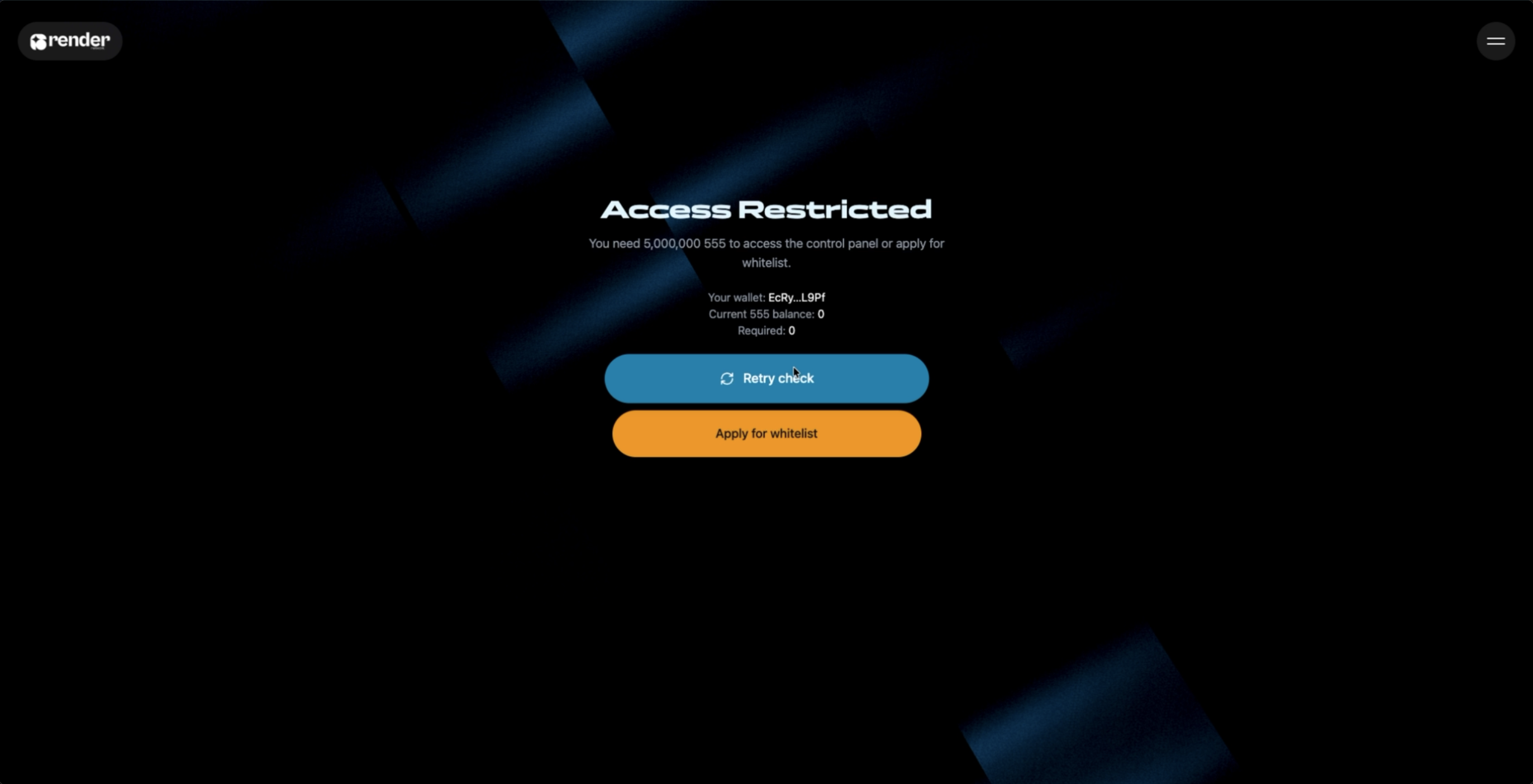
2
Connect your wallet
In CTRL, click Connect and authenticate with your Solana wallet (e.g., Phantom or Solflare).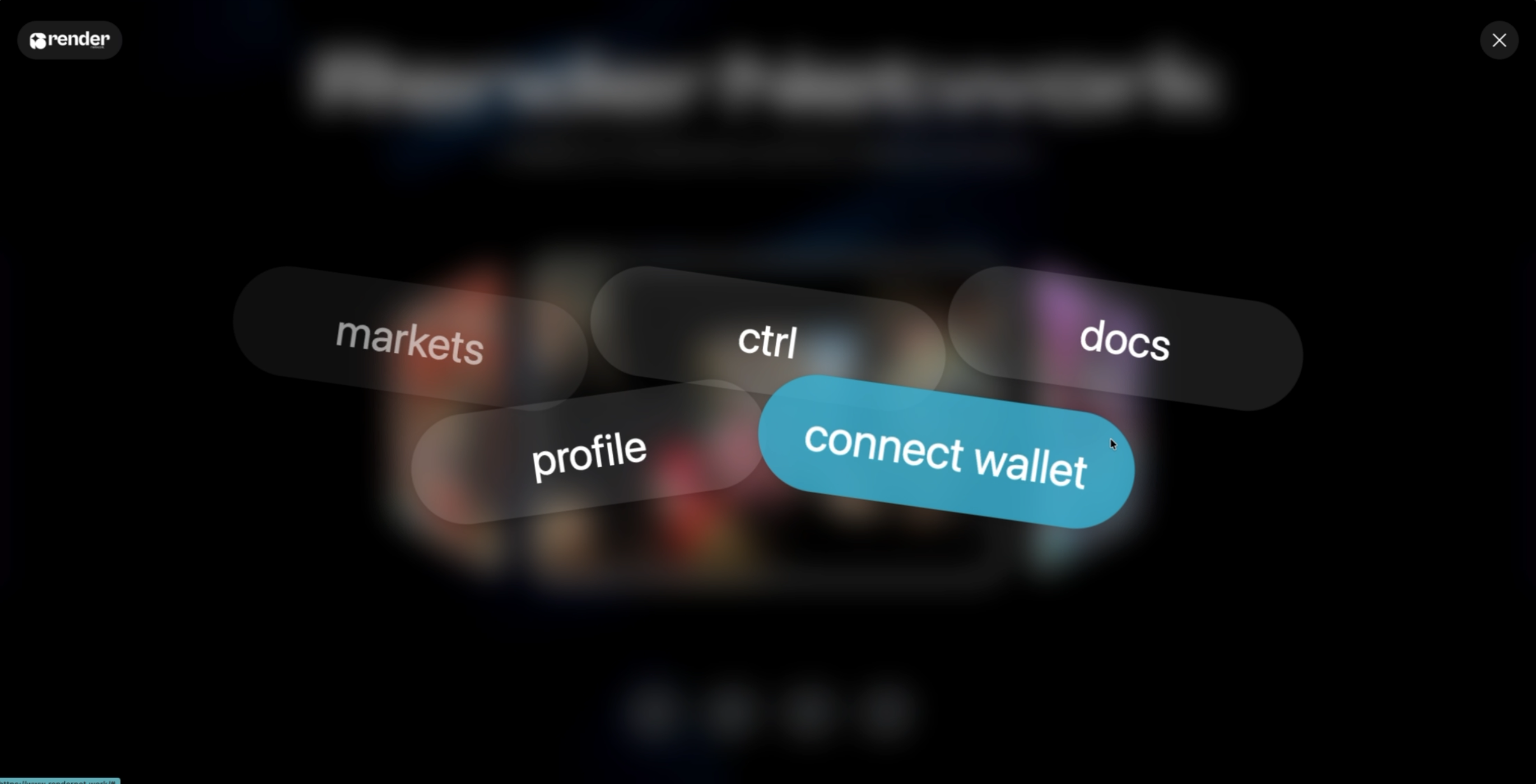
3
Copy your overlay link
In CTRL, copy your overlay URL for your current profile/theme.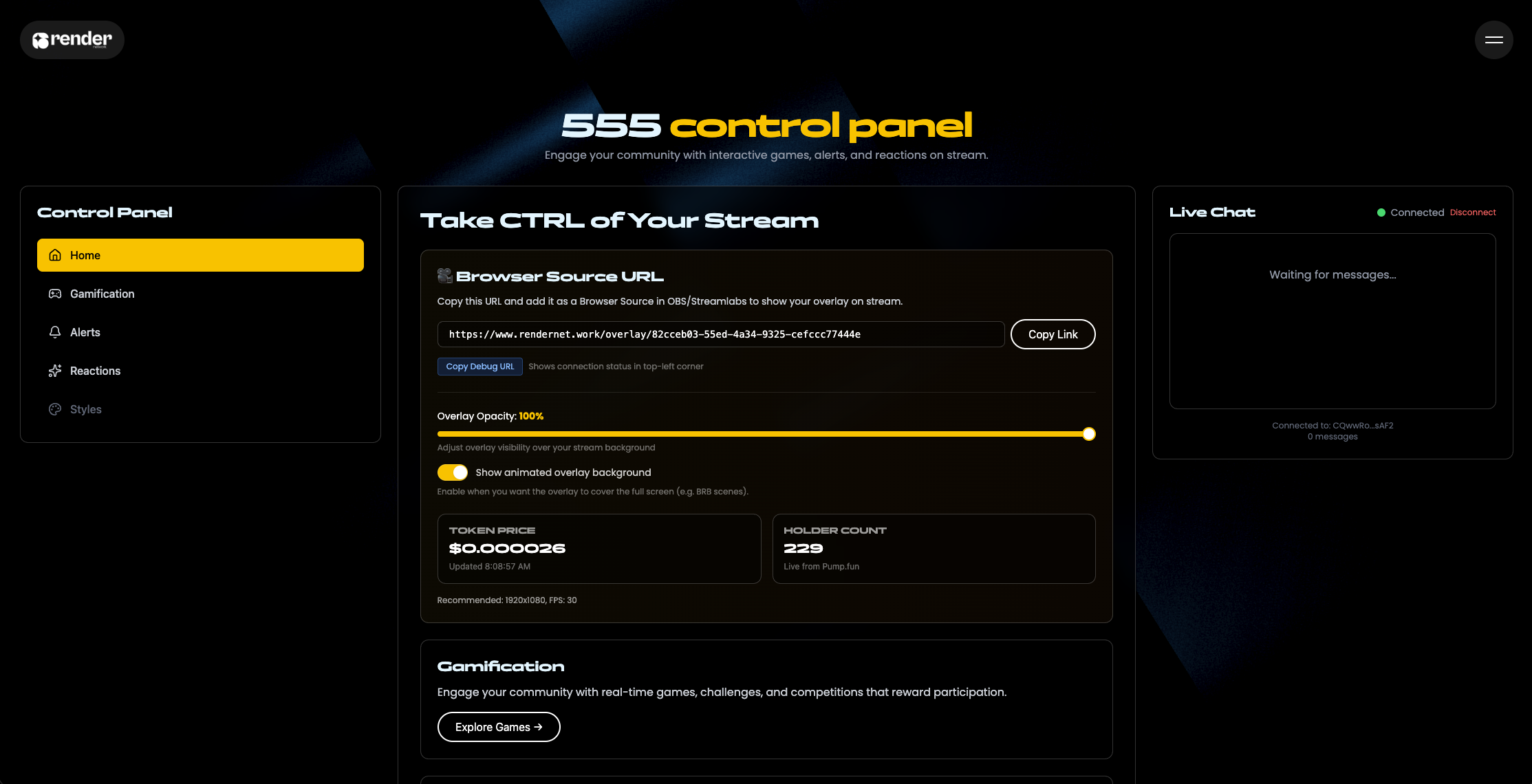
4
Add games, alerts, and reactions
In CTRL, enable the modules you want (games, alerts, reactions) before adding the overlay to OBS.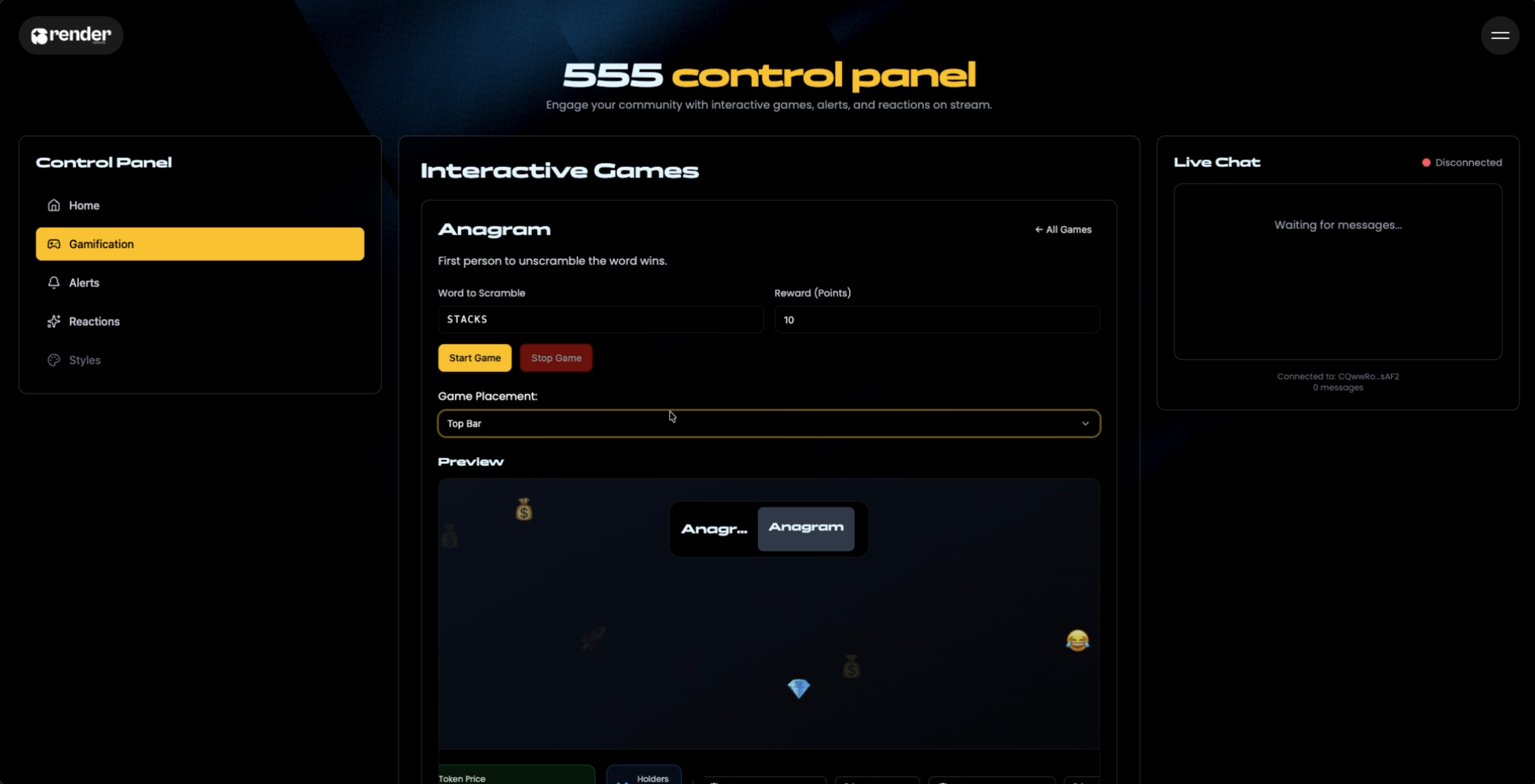
5
Open OBS Studio
Launch OBS.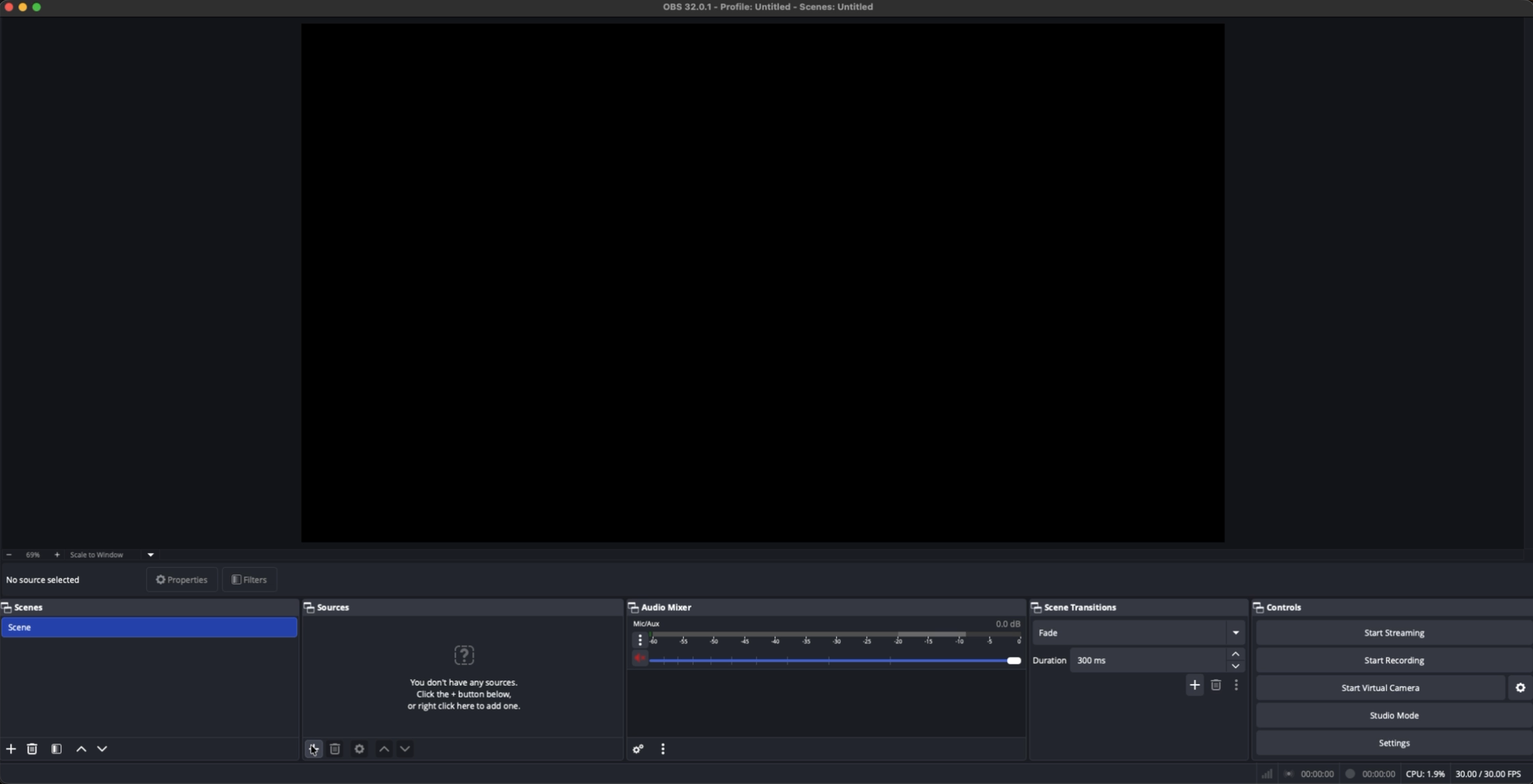
6
Add a Browser Source
In the Sources panel, click the + icon → Browser Source.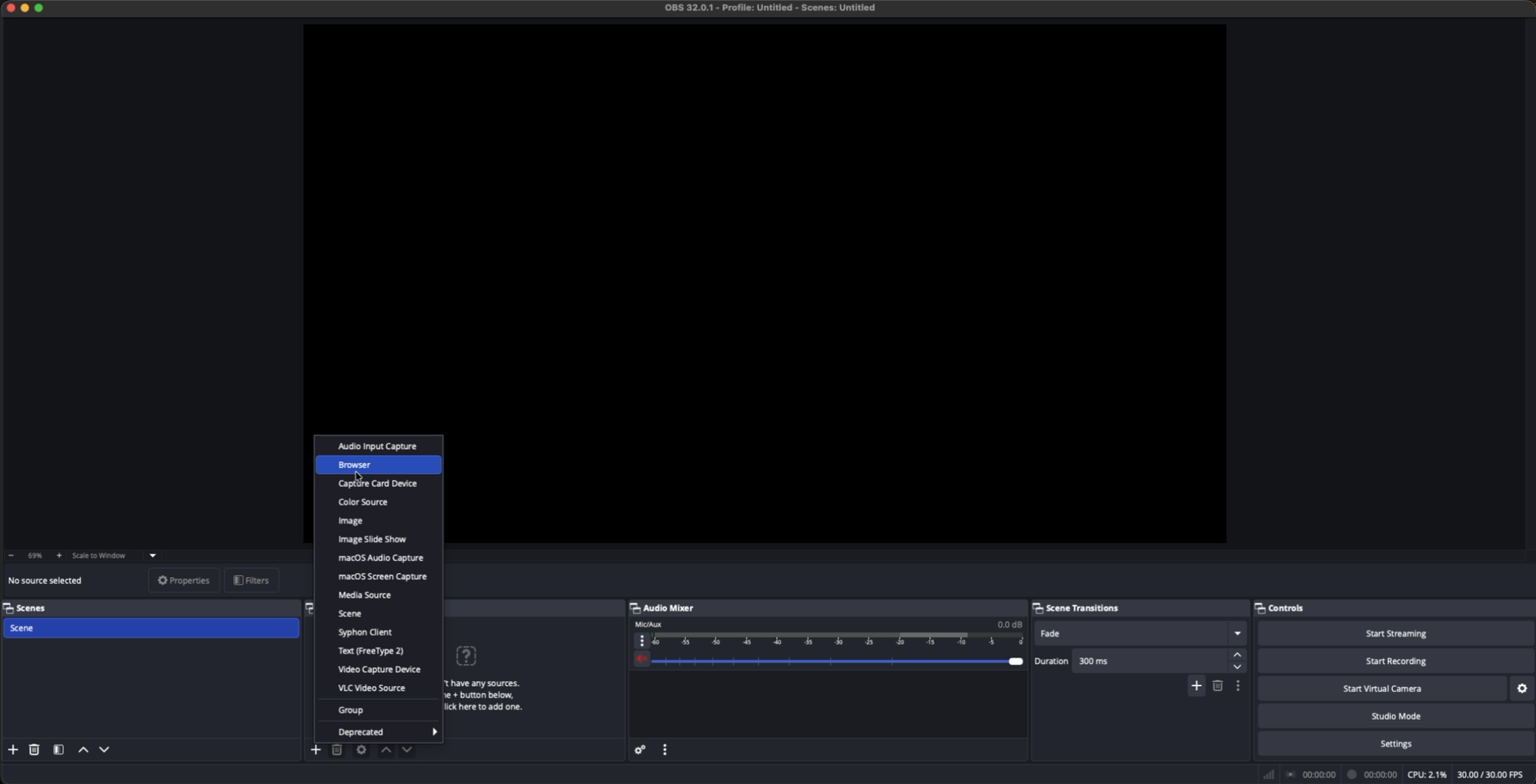
7
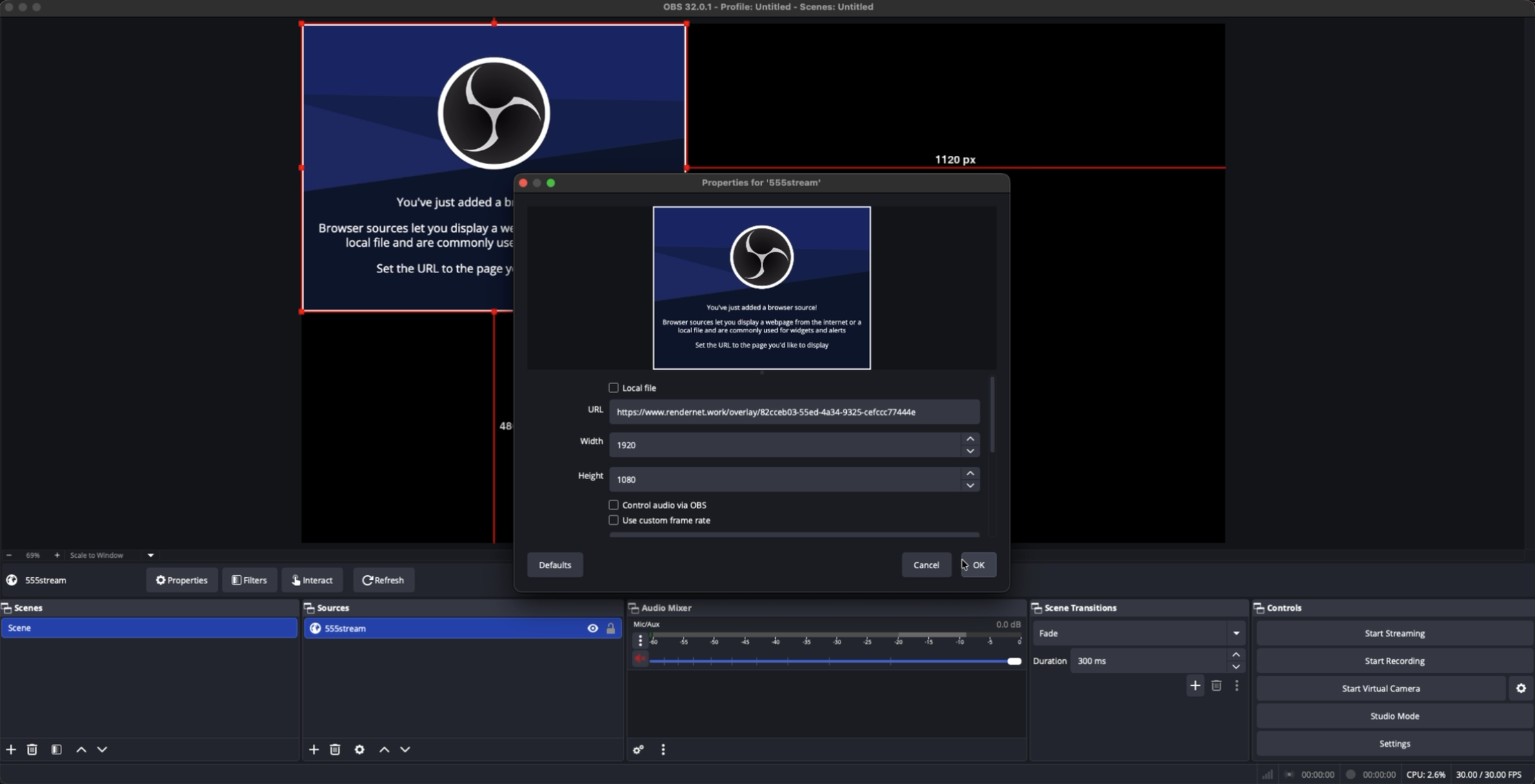
Paste your overlay URL
Paste the URL you copied from CTRL and set the resolution to 1920 × 1080. Click OK.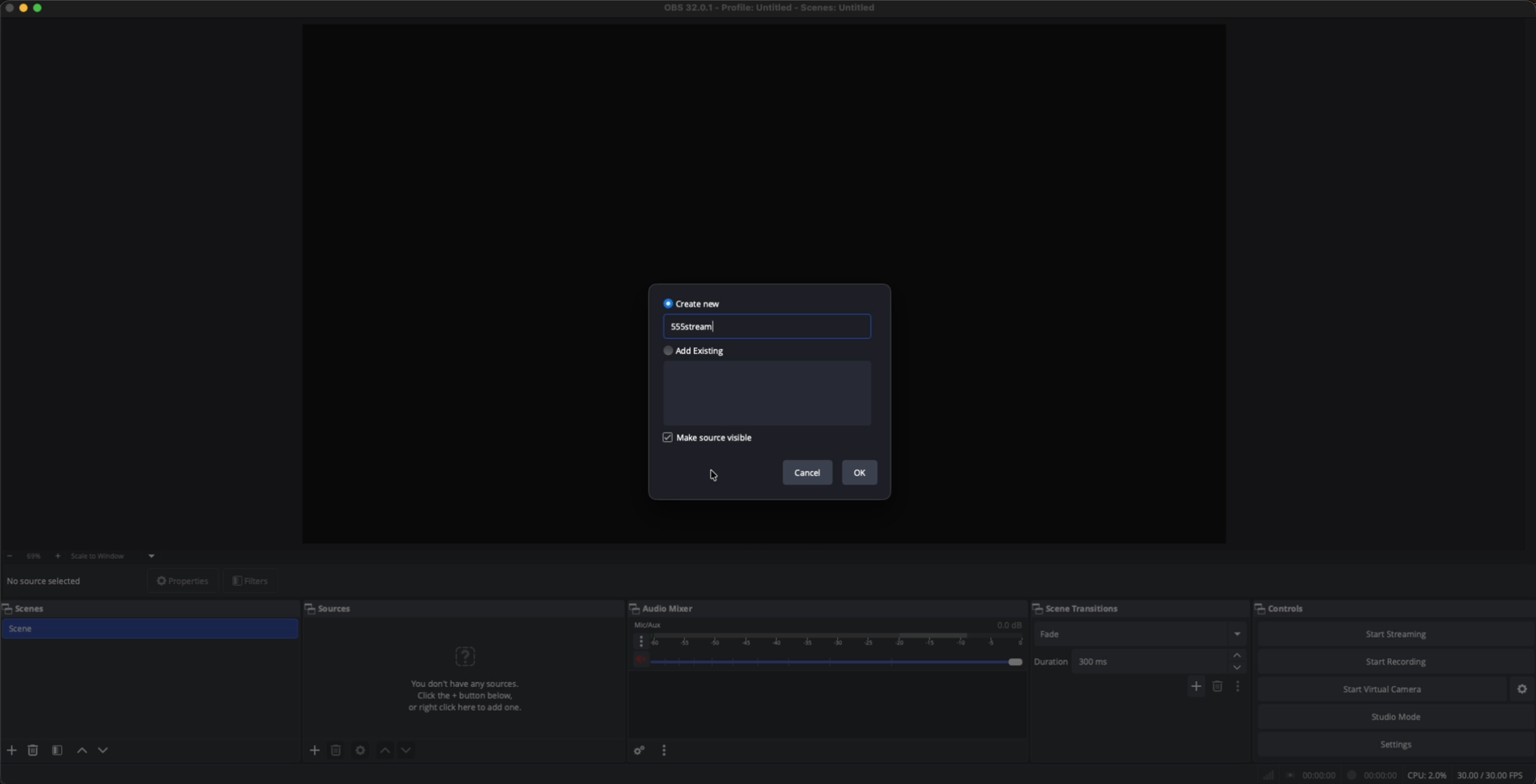
8
Complete
You’re done. Go live and verify events render over your scene.