> ## Documentation Index
> Fetch the complete documentation index at: https://docs.rndrntwrk.com/llms.txt
> Use this file to discover all available pages before exploring further.

# OBS Integration (Legacy)

> Legacy broadcast interop for operators who still need it

<Warning>
  **Legacy / Transitional**: OBS integration is being consolidated into [555stream](/555stream) (the browser-native studio). This guide remains available for existing setups during the migration period. New creators should start with [For Creators](/for-creators). This path will be deprecated once 555stream reaches full feature parity.
</Warning>

<Info>
  Follow these steps to add the 555 overlay to OBS Studio.
</Info>

<Steps>
  <Step title="Navigate to CTRL">
    Go directly to CTRL Panel: [https://rndrntwrk.com](https://rndrntwrk.com)

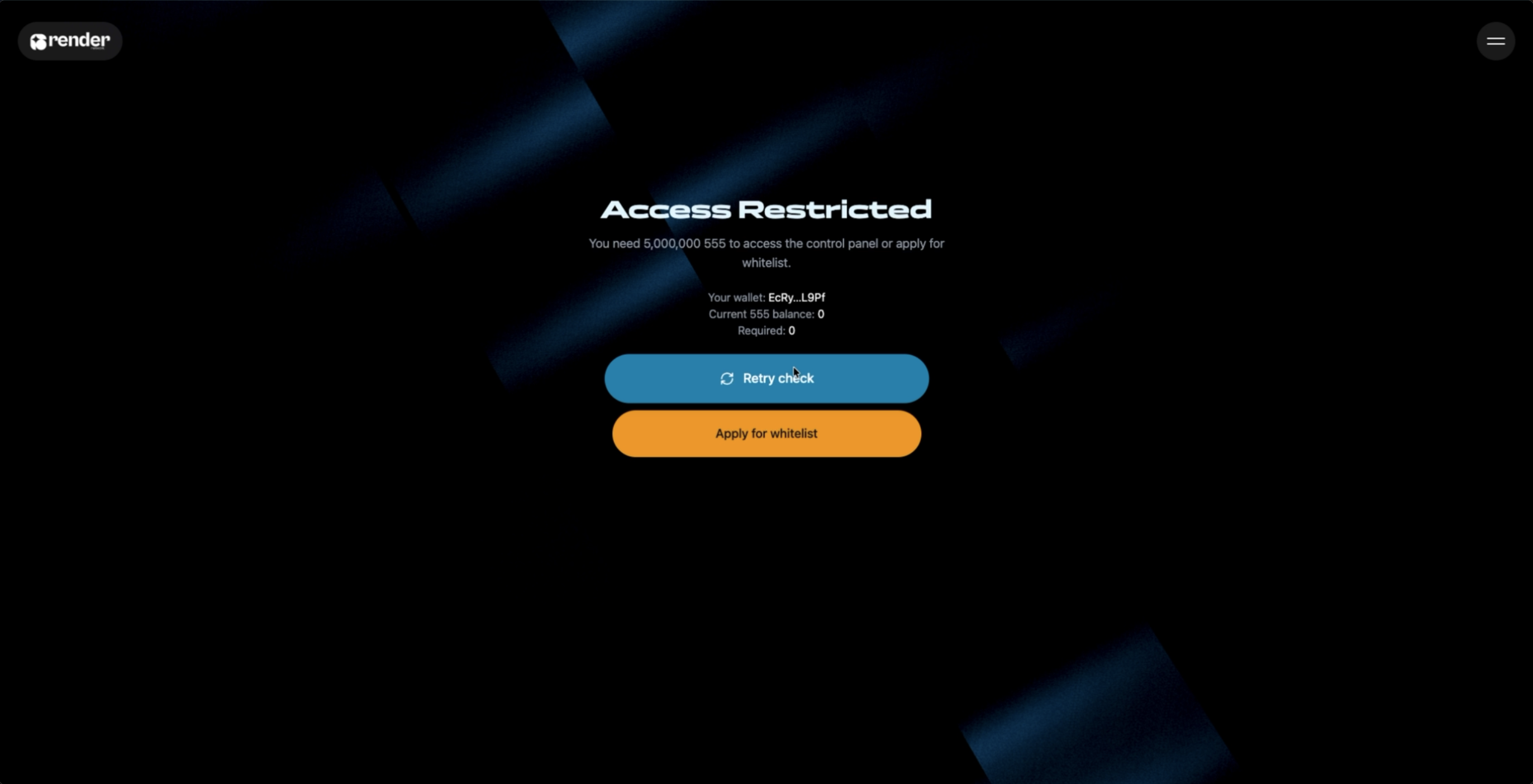
    Access requires 5,000,000 \$555. If you don't meet the threshold, request whitelist access via Discord.
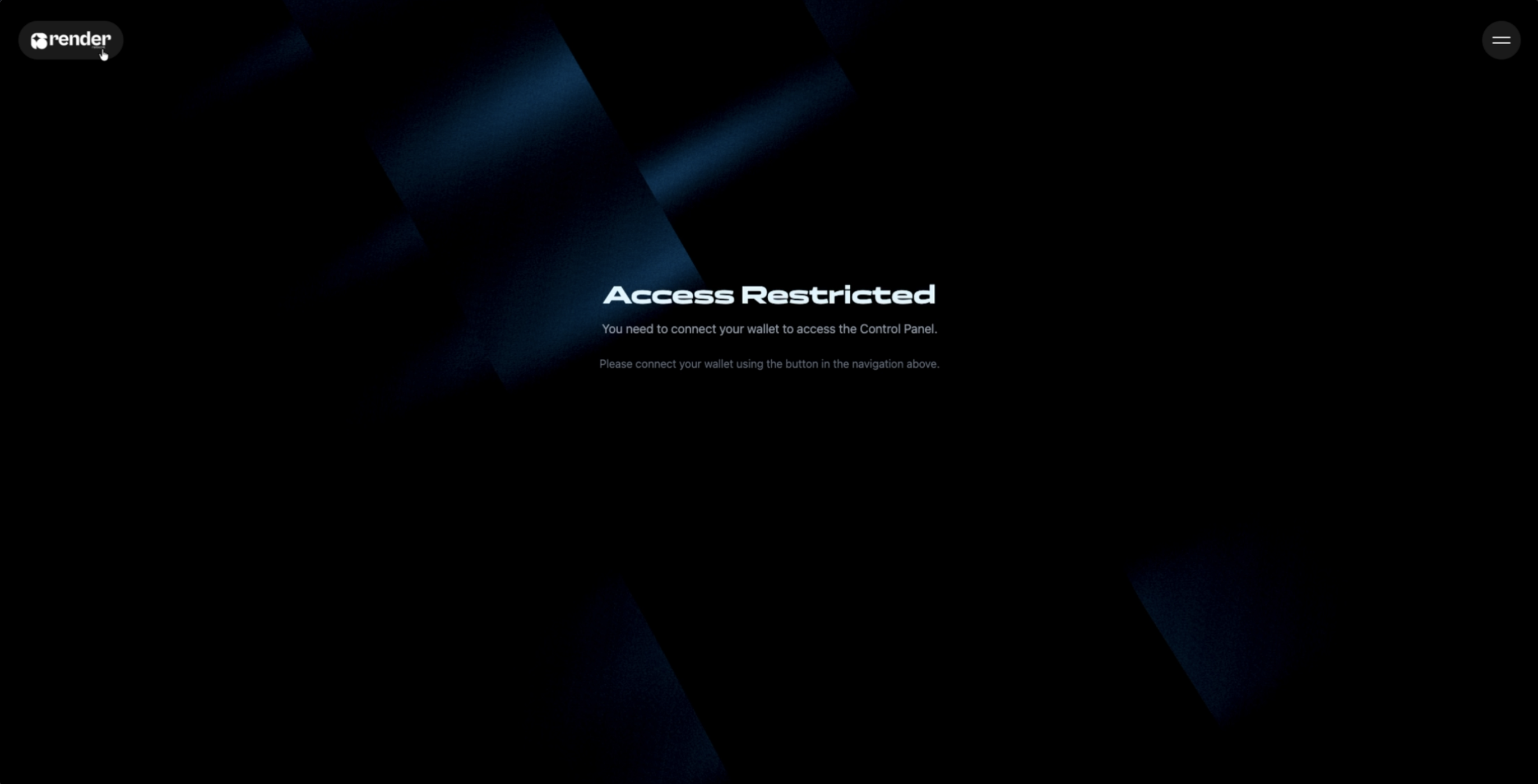
    ![CTRL Panel (no wallet connected)](https://res.cloudinary.com/davqktkik/image/upload/v1761227703/ctrl-no-wallet_hnwsy2.png)

    ![CTRL Panel (not enough tokens)](https://res.cloudinary.com/davqktkik/image/upload/v1761227701/ctrl-not-enough-tokens_l5hlch.png)
  </Step>

  <Step title="Connect your wallet">
    In CTRL, click Connect and authenticate with your Solana wallet (e.g., Phantom or Solflare).
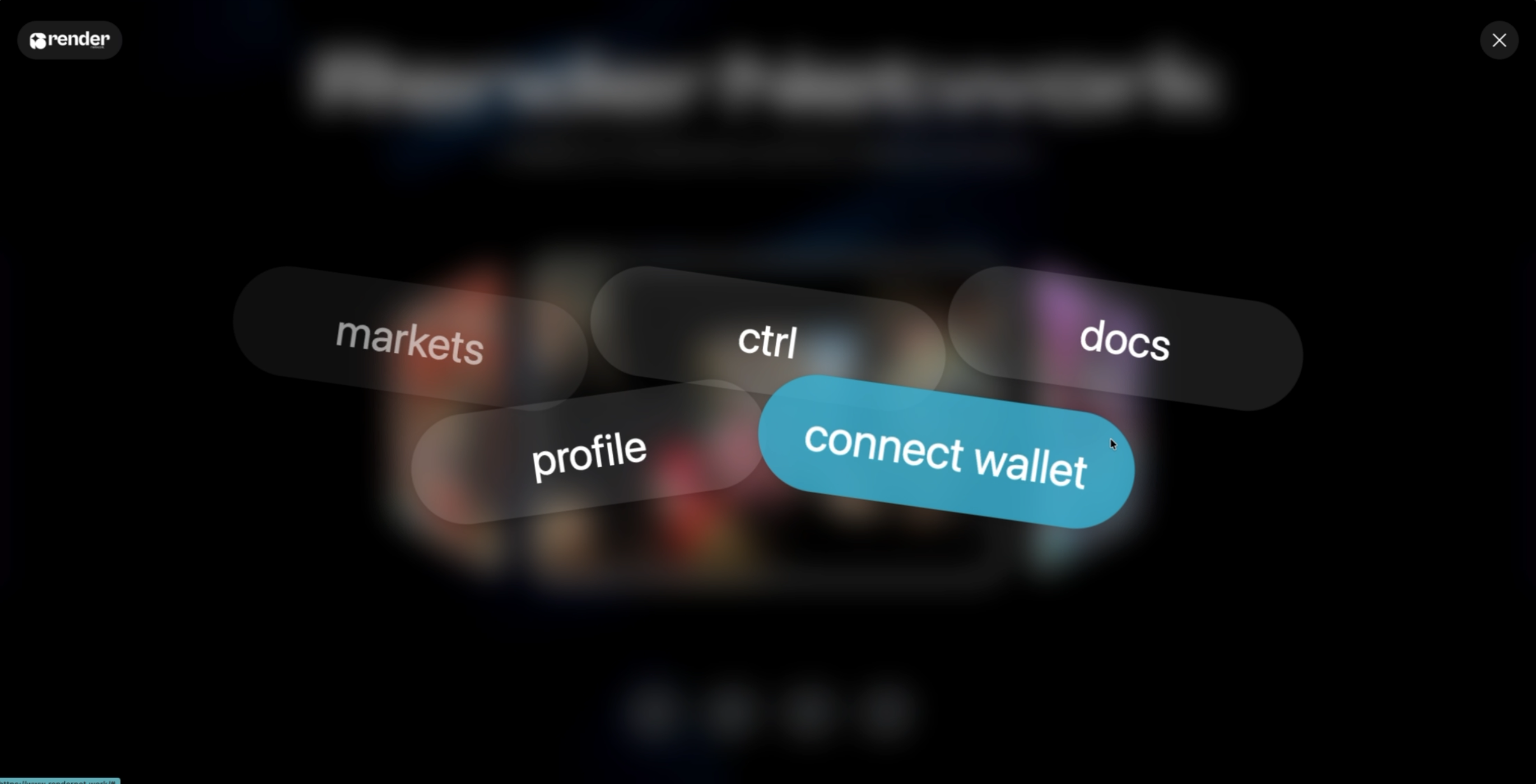
    ![Connect Wallet](https://res.cloudinary.com/davqktkik/image/upload/v1761227702/connect-wallet_vrvhku.png)
  </Step>

  <Step title="Copy your overlay link">
    In CTRL, copy your overlay URL for your current profile/theme.
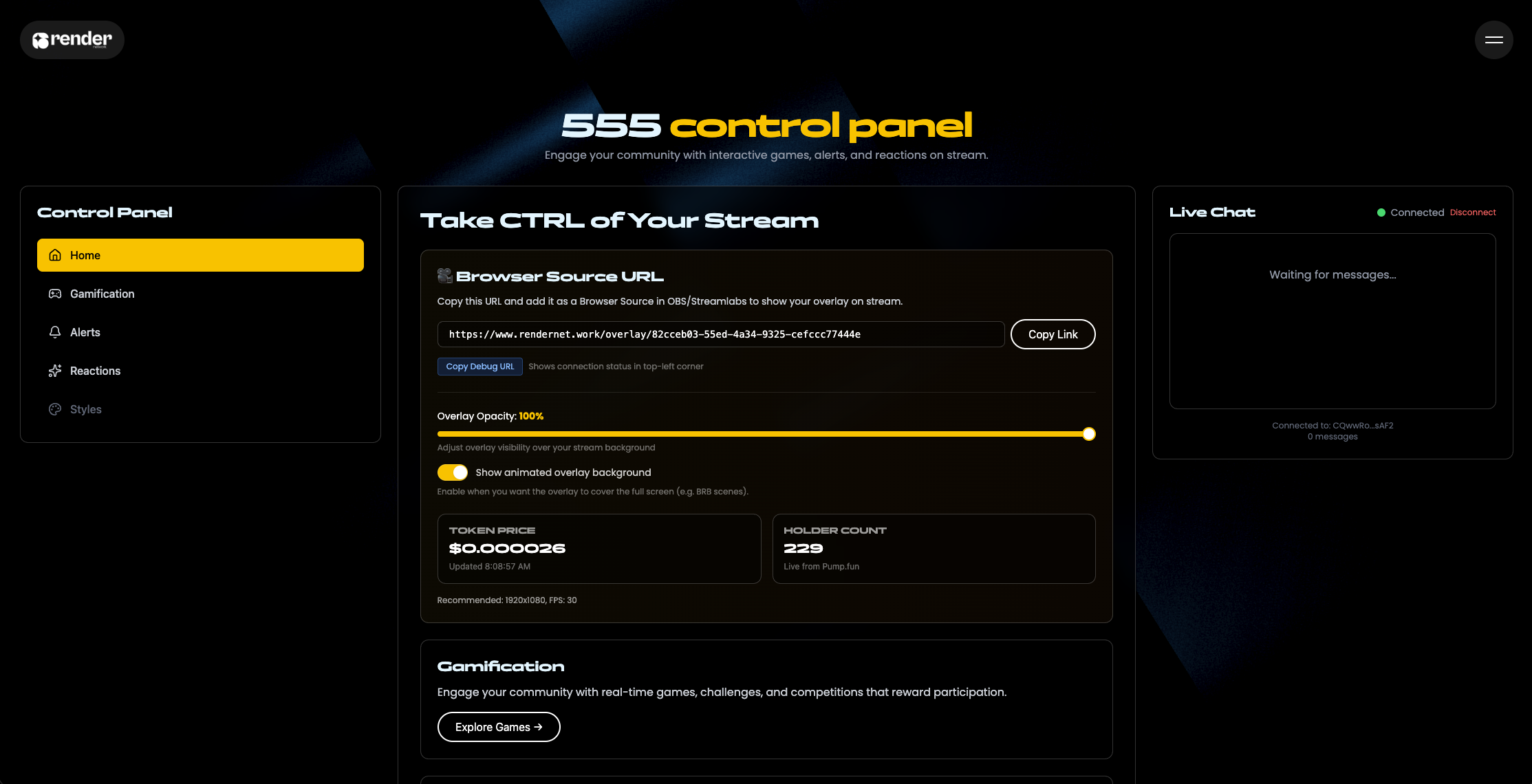
    ![Copy Overlay Link](https://res.cloudinary.com/davqktkik/image/upload/v1761227702/ctrl-panel-copy-link_rijqom.png)
  </Step>

  <Step title="Add games, alerts, and reactions">
    In CTRL, enable the modules you want (games, alerts, reactions) before adding the overlay to OBS.
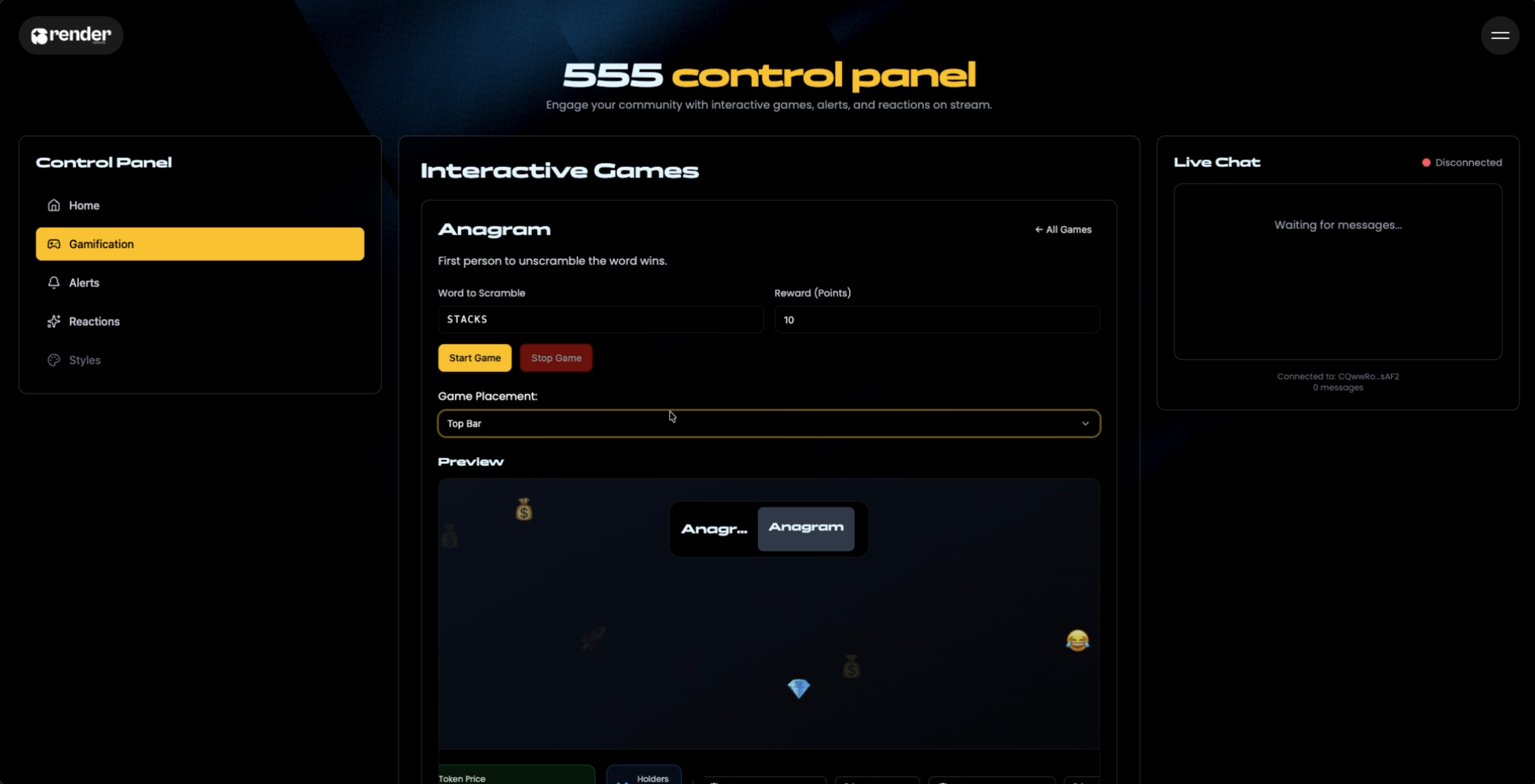
    ![Enable Modules (games, alerts, reactions)](https://res.cloudinary.com/davqktkik/image/upload/v1761227700/ctrl-modules_kq6dzg.png)
  </Step>

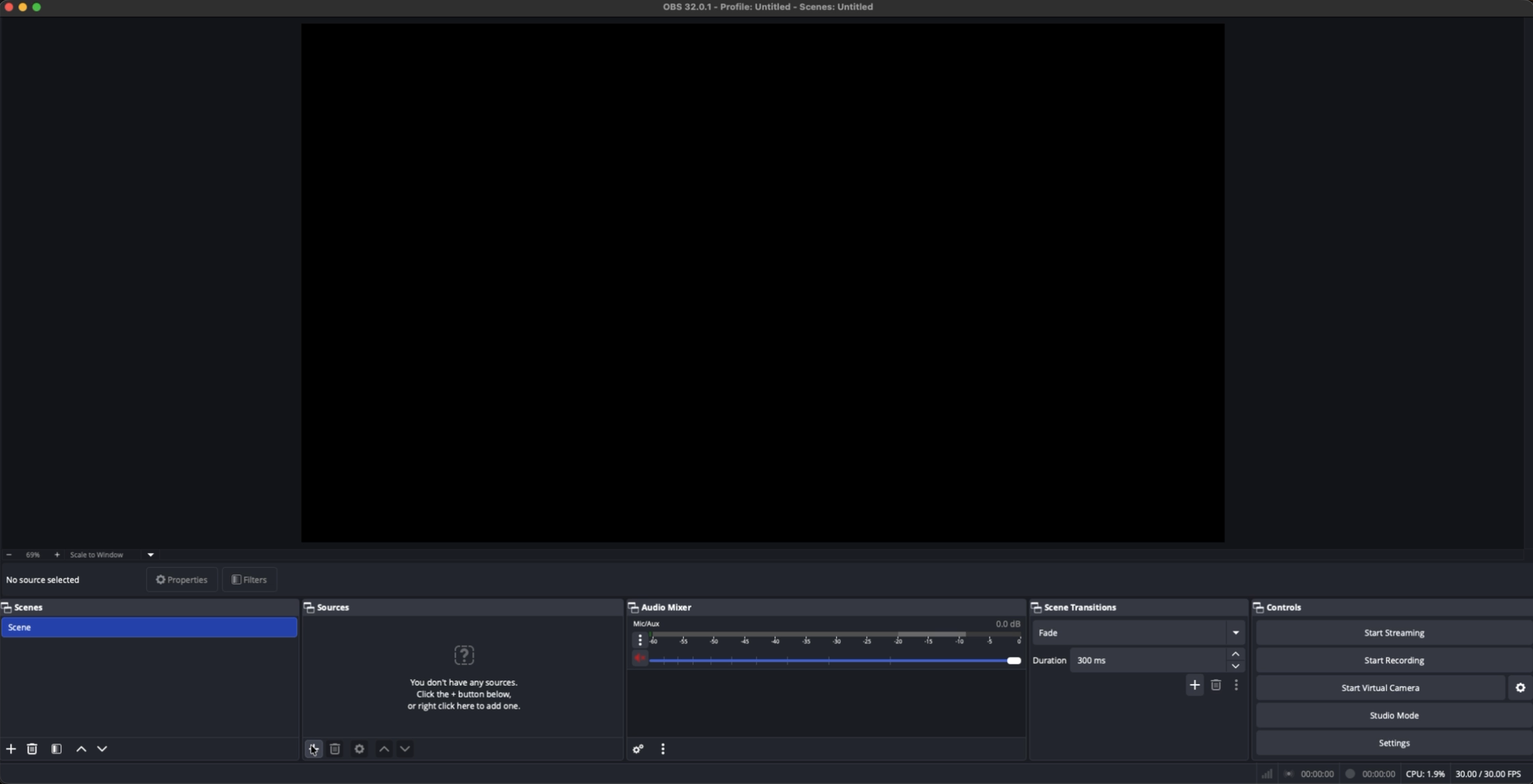
  <Step title="Open OBS Studio">
    Launch OBS.

    ![OBS: Add Source](https://res.cloudinary.com/davqktkik/image/upload/v1761227702/obs-add-source_muv0nu.png)
  </Step>

  <Step title="Add a Browser Source">
    In the Sources panel, click the + icon → Browser Source.
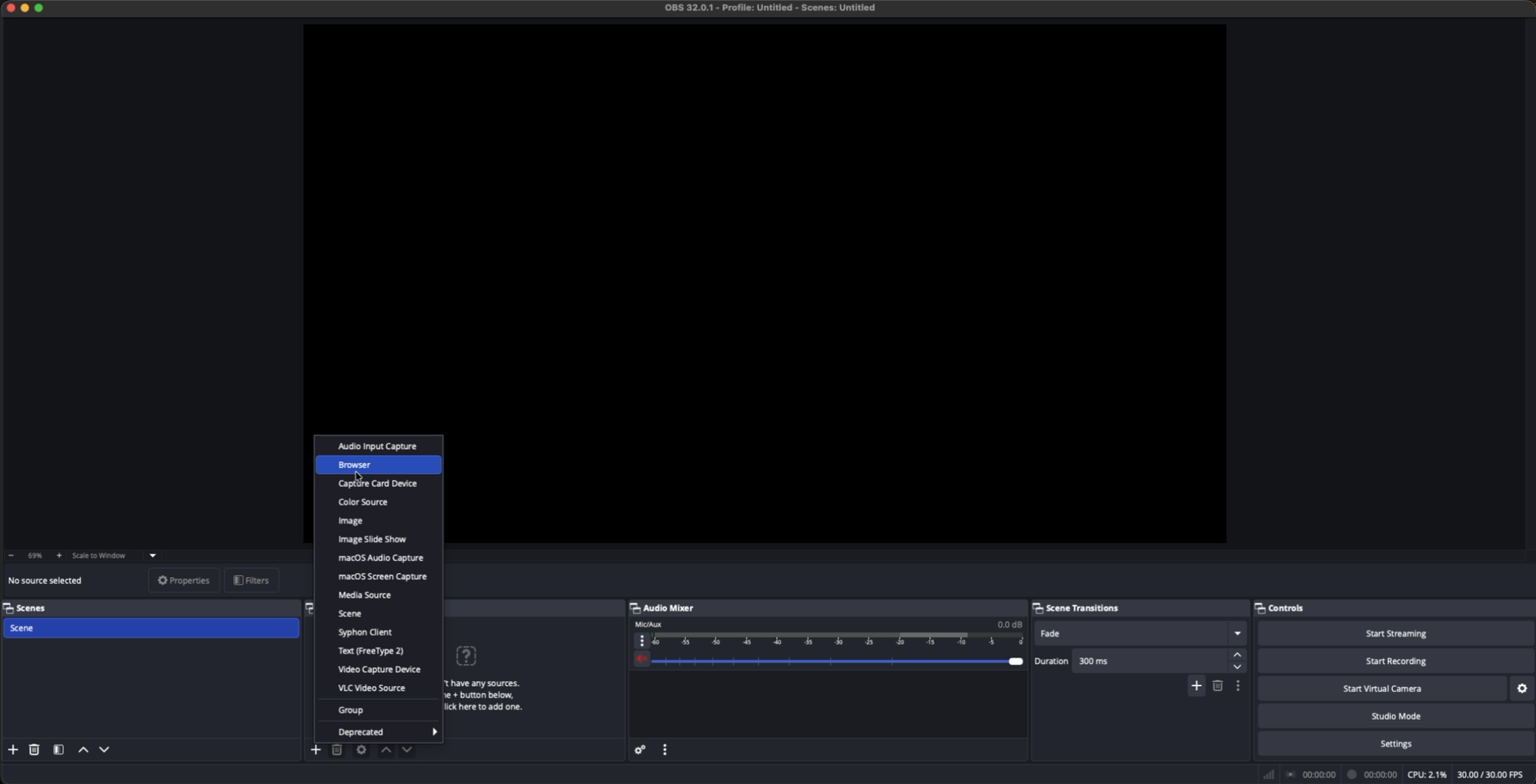
    ![OBS: Select Browser Source](https://res.cloudinary.com/davqktkik/image/upload/v1761227700/obs-select-browser-source_awu02n.png)
  </Step>

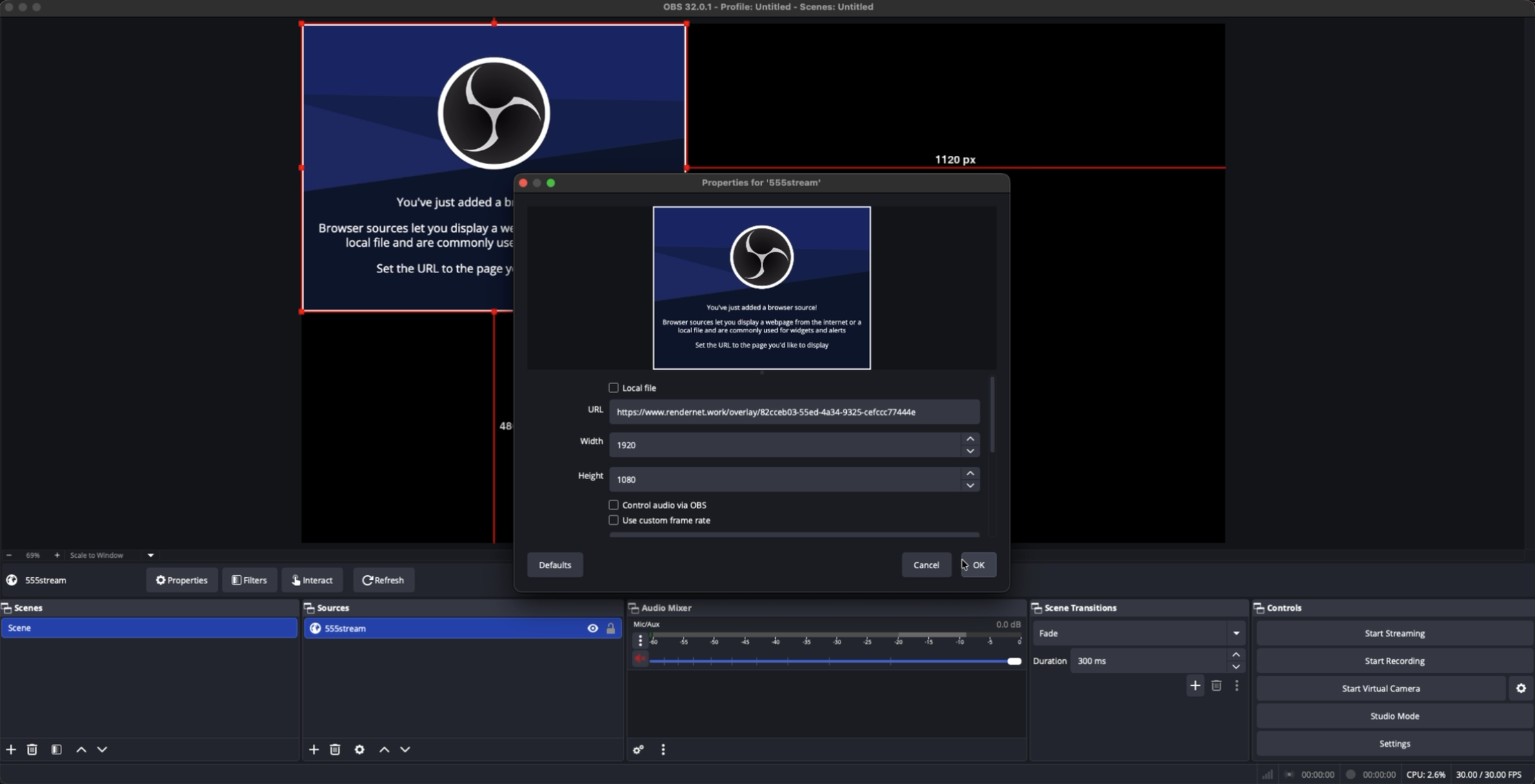
  <Step title="Paste your overlay URL">
    Paste the URL you copied from CTRL and set the resolution to 1920 × 1080. Click OK.
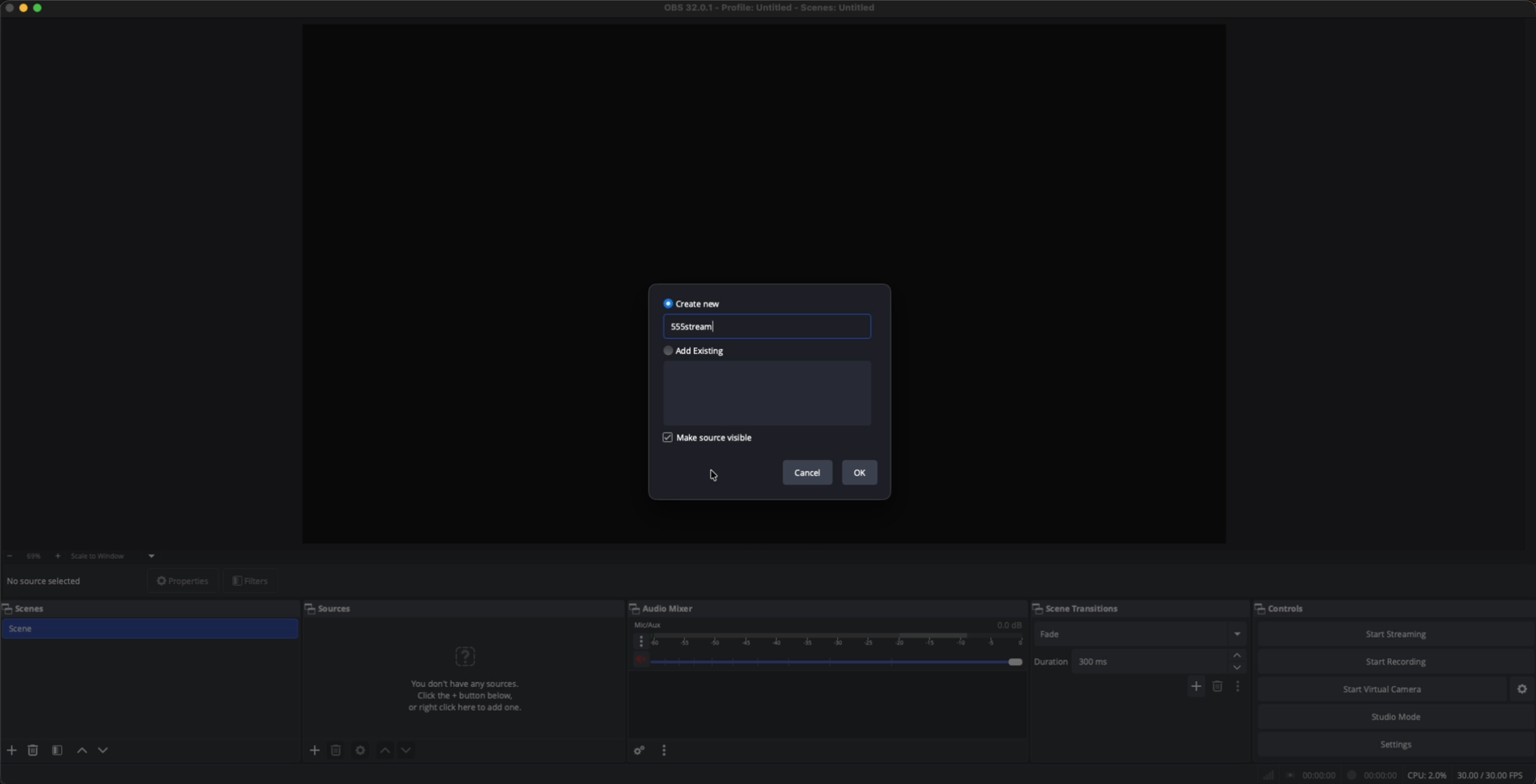
    ![OBS: Name Source](https://res.cloudinary.com/davqktkik/image/upload/v1761227701/obs-source-name_klsc7o.png)

    ![OBS: URL + Width/Height](https://res.cloudinary.com/davqktkik/image/upload/v1761227700/obs-url-width-height-set_bm7xqe.png)
  </Step>

  <Step title="Complete">
    You're done. Go live and verify events render over your scene.
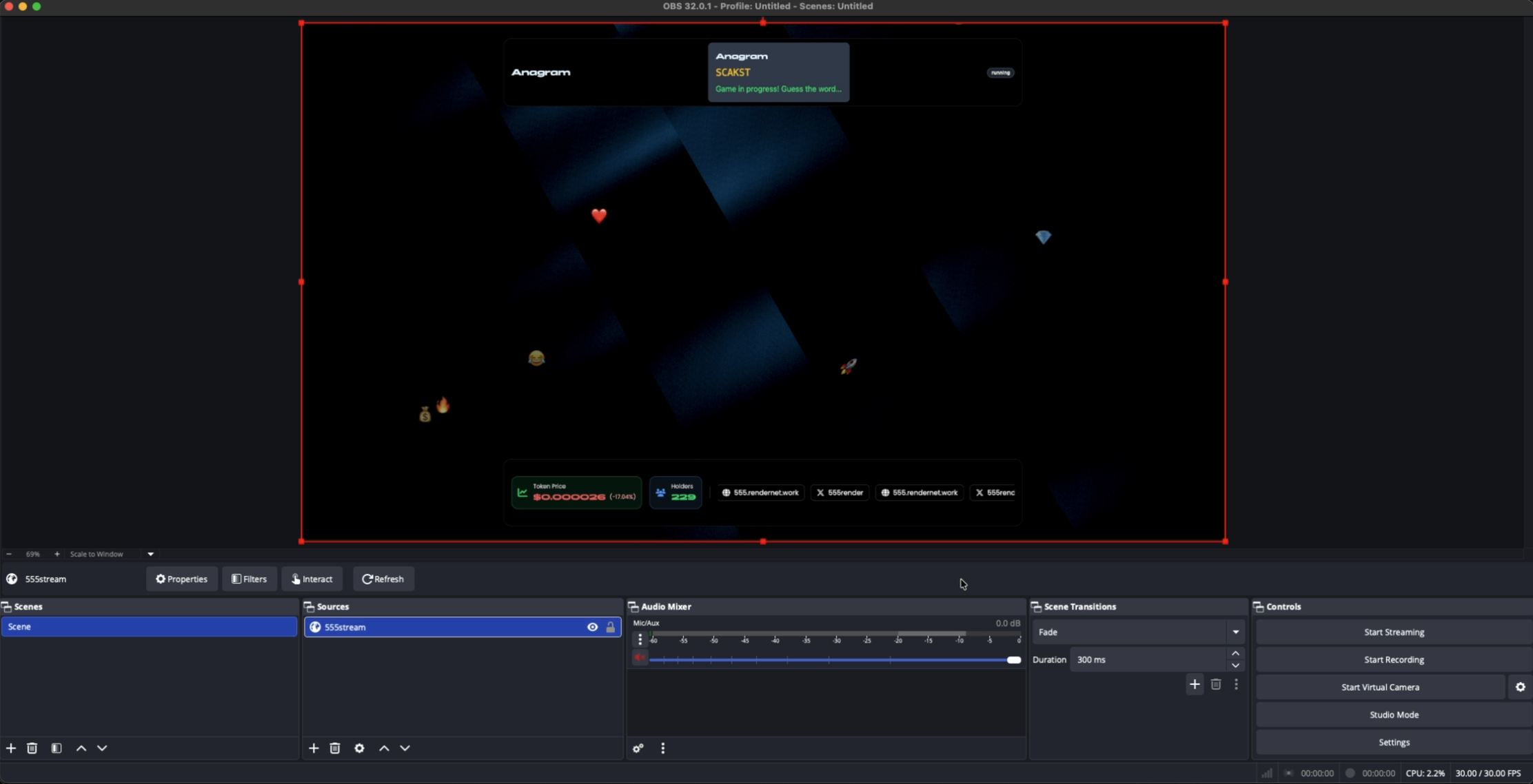
    ![OBS: Complete](https://res.cloudinary.com/davqktkik/image/upload/v1761227700/obs-complete_j1t4k6.png)
  </Step>
</Steps>